References (BETA)
Introduction
In printIQ, 'References' generally refer to labels or identifiers that are used to link, track and categorize customers, quotes, jobs or related data across the system.
References Admin Screen
To access the References Admin screen, select Admin from the main menu and under Application. there is an option for References (Admin-> Application -> References):

References option will only display in the menu if your user has access to the screen
Clicking this button will take users to the Reference Admin screen:
Reference List View
All references can be viewed by option type, dragged to reorder and edited via the pencil icon. Clicking on the reference number will copy it to the clipboard.
Multiple references can be selected at once and an action button will appear to activate or de-activate selected items.
When the screen loads initially 'Component' is selected by default in the reference options dropdown, as this is the first in the list alphabetically. If you click on the dropdown, other reference options will display. They include:
- Component
- Customer
- Invoice
- Item
- Job
- Order
- Payment
- Product Catalogue
- Quote
- Quote Product
- Rework
- Sales Order Item (Accepted)
- Sales Order Item (Quoted)
- Task
Component, Customer, Product Catalogue and Task all have 20 references available. Invoice, Item, Job, Payment, Order, Product Catalogue, Quote, Quote Product, Sales Item and Rework all have 30.
To view or update a references detail, click the pencil/edit icon next to the Ref#. A modal will open showing all options and settings for this reference:
Grouping References
Reference Groups can be created through the Action Bar, they can be edited by clicking the pencil/edit icon and re-ordered using Drag & Drop arrows; hold Shift to move groups and its items together.

Groups can be deleted by clicking the 'x' icon on the right

Reference Linking
References can be set to 'Standalone' or 'Linked Reference' modes. Standalone means they have no dependency on any other reference. 'Linked References' means they will mirror the values of another reference and optionally keep the configuration of that reference:

There is a Reference Linking info button on the action bar:

When this is clicked a modal appears telling users which references can be linked to others:
For more information on Reference Linking see the Linked Reference section below, under Reference Setup.
List Values
The 'List Values' dropdown provides the ability to Export all 'List' options in a CSV, for a particular reference option. Additional list items can be added to the CSV and these can be imported into the system.
Adding List Values via the screen is limited to 100, so the export/import functionality is required to create lists with 100+ values.

The 'Help' option in the List Values dropdown displays a modal with information on the CSV fields:

Reference Setup
A reference must be set to 'Active' to become usable. Once it has been made active it will move from the greyed out references list at the bottom of the screen, to the bottom of the ungrouped reference list. When a reference is active it can be dragged and dropped into position or into a group on the screen. It can also be given a name, a reference type as well as a default value.
Reference Types
A reference type must be selected from the 'Type' dropdown list. Available options are:
Text – free-type, alpha-numeric strings can be entered into the reference field
Number - free-type, numeric values can be entered into the reference field
List - Create a list of values for users to select from
Date - A calendar is presented for a date to be chosen
Lookup - A lookup type will need to be selected. Example are GL Codes, Billing Subsidiaries, Contacts and Addresses
Text with Validation - This calls a 3rd party validation service. Custom development is required to enable this service
Image List - Image URLs can be added so images will display in a list to choose from
Billing Subsidiaries
A reference lookup option exists called 'Billing Subsidiaries'. It works with customers that have been set as the ‘Billing Customer’ on other customers – as in a Head Office / Branch (Hub and Spoke) type model:
With the Billing Customer field set on a ‘Spoke’ customer, this allows them to place orders in printIQ, but the invoicing is directed to the Hub Customer defined in the 'Billing Customer' field on the Customer Details screen.
In this example, 'Georgie Pie – Napier' can place orders and the invoices will be linked and to the Georgie Pie Ltd Head Office:

When a reference with a Billing Subsidiaries Lookup is used with the Billing Customer, the ‘Subsidiaries’ or values are the branch accounts linked to the head office:

Be aware that when a customer is not set as a Billing Customer for another, there is nothing to show in the reference dropdown list and it will not display any options to choose from
Text with Validation
Text with Validation calls a 3rd party validation service from printIQ. Custom development on your site is required to enable this. Please contact IQ support team for implementation.
Configuration:
- Configure the Validation URL.
- The format of this URL requires the placeholder {value}. eg: https://www.abc.com/{value}. This {value} will be replaced with the text entered in the reference textbox.
- Configure the authorization to the validation endpoint
- Specify the “Authorization Header Name” – Currently, we support Basic mode
- Specify the “Authorization Header Value” – Base64 encoded version of the username and password
- Specify any other “Custom Headers” required – Any additional headers to be provided
- Click “Save”
Internal Note:
Once the customer provides the Authorization username and password, we need to encode the credentials using Base64 encoding.
There are number of free sites which can generate an encoded version of credentials.
You need to paste the encoded version of the username and password into the “Header Value”.
How does this actually work?
A new webservice called “ExternalValidation.asmx” was developed to call a 3rd party validation service from PrintIQ.
As shown in the above workflow diagram, after the user enters the text in the validation field, the text is sent to the ExternalValidation.asmx web service in printIQ.
This service then builds web request by replacing the {value} with the text entered along with the authorization header name, value and custom headers (if any).
Once it has built the web request, it sends it to the external validation service.
Once the validation is complete, then the webservice would get the response from the external validation service which then
has a set of rules which it runs through to return the response back to the webpage which were the user has entered the text.
The response contains either the text is valid or not.
Hidden For/Read Only For
References can be set to be hidden for certain user types such as Staff, Shop Floor and Customer/Anonymous.
They can also be set to be read only for selected user types. Admin users will always have the ability to edit reference values.
Required
A reference can be checked as required which means the reference must have a value selected or entered before the user can proceed. This marks the reference as mandatory.
Log History
History logging can be enabled for Customer, Invoice, Job, Quote, Rework, and Sales Item (Accepted and Quoted) reference types. Use the Enable History Logging checkbox to control whether changes are tracked. When enabled, all changes are recorded in the history log. When disabled, no history is captured.
Only Apply To
References can be set to only be applied to particular customers, customer groups or to quotes containing selected operations.
These filters can be configured to include or exclude the selected values through the selector below the dropdown:
Linked Reference
This option is used to mirror the values and optionally the configuration from another reference. There is a 'Behavior' selector which allows the reference to be set to
- copy only the value from the linked reference or
- to copy value and keep all configuration from the linked reference
If a reference is linked to another the reference modal will display an arrow icon which will take you to the linked reference:

When the icon is clicked, the linked reference will open in another tab with details of the linked reference collapsed. When expanded, the linked reference name displays along with a magnifying glass icon which, on click, will take users back to the other linked reference. This allows easy navigations between linked references:

Image List
The reference type of 'Image List' allows for image URLs to be added as list values. When image list has been selected as the reference type, the Image Options panel displays on the right of the reference modal with fields to add image URLs:

Once valid URLs have been added, the images will display and can be re-arranged using drag and drop functionality. An optional label is available for a text description of the image. They can also be removed by clicking the 'x' icon, or updated by clicking on the image URL itself:
The number of image URLs that can be added to a reference is limited to 30.
The images will display as a list in the area of printIQ the reference applies to i.e Customer Details, Quote Details, Job Details, Rework or Task modal:
Lookups (Adding/Editing)
The reference type 'Lookup' can be used to add dropdown selectors for GL Codes, Billing Subsidiaries, Contacts and Addresses. With contacts and addresses these can be set to allow single or multiple selections:
Additional contact and address options can be added on the references themselves and existing options can be edited:

To add proof contacts or addresses, a job reference must be linked to a proofing operation. If there is a combination of Proof Quote Questions and Proof References on a job with proofing operations, all selected options will be brought through to the Proof Details screen.
When an operation is linked to a reference, the name of the operation will display below the reference as shown in the image above.
Reference Options
Component References
Component references are used along with imposition requirement components.
When component references are activated on the reference admin screen, they show as reference fields on the imposition requirement components of a die library.
They are added here for categorization and searching purposes. This is useful for operations like Die Libraries where there may be a large number of options.


On component references there are options on the edit reference modal to 'Show in Die Library' and 'Search in Die Library'. This means the references will display as search filters in the Die Library when 'Show More' is selected:

Customer References
Customer references allow extra fields to be added to the customer details screens allowing more information to be saved against the customer records.
When active references are applied to a customer, the customer details screen has an additional 'References' section between Pricelists and Settings:

Customer References can be linked to invoice, job, quote and quote product references and their values and configuration copied.
This means that if a value is set on a customer reference, this can be copied across to an invoice, job, quote and quote product reference.
Invoice References
When generating an invoice, the reference fields will show at the bottom of the invoice details screen. Unpopulated required references will be highlighted in red as shown below:
If all invoice references are populated the Invoice References section will be collapsed by default:
Invoice References can be added to the Invoice PDF document template. Please contact support for this to be configured.
Invoice References can be linked to payment references and their values and configuration copied.
This means that if a value is set on an invoice reference, this can be copied across to a payment reference and will then display on the invoice details screen.
QBO
The invoice references are held on the Invoice Header Details (not at the line level). The value of any or all invoice references can be configured to be pushed to QBO when the invoice is exported.
This requires a development setup task to configure which invoice references are to be included in the invoice export [tblQBO_ExtraFields].
When consolidating invoices, the references will be taken from the first invoice that a particular reference has a value on. Reference 1 is a required reference, copied from a Customer Reference, so they will all be the same. In the below example INV004 has references 1, and 2 only. The consolidation process will use all references it finds from this invoice:
INV007 has references 1, 2 and 3.
As the consolidated invoice has references 1 and 2 already from the 1st invoice, only reference 3 is copied from this invoice.
INV126 has references 1, 3 and 4.
This is the first Invoice Reference 4 encountered, so it is added as the same reference in the consolidated invoice.
INV0138 has all 4 invoice references.
However, by the time the consolidation process reached this invoice, all references on the consolidated invoice have been populated. No references from this invoice are used on the consolidated invoice.
Item References
Item references allow the configuration of extra detail fields that can be added to Sales/Store Items expanding the categorizing and grouping of stock:
These references also display on the items inventory record on the inventory items screen:
Item references will show on all inventory type records – paper, inks, plates, materials etc.
For these inventory types, the Item references can only be accessed through the Inventory Details modal. They do not appear in the other items’ definitions.
On the Inventory Board, the first 3 references are also included as selectable columns that can be added to and removed from the Inventory Board display:

The first 3 item references are included in the Inventory Items CSV Export whether they are active or not.
Job References
Job References can be applied to jobs for particular customers or customer groups and applied to jobs containing specific operations or applied to all jobs if required,
When job references are active and applied to a job, a reference section displays on the right of the job details screen:

Job References can be applied to Production Job Bags if required. Please contact support for more information.
Customer, Product Catalogue, Quote and Quote Product References can all be linked to job references and their values and configuration copied.
This means that if a value is set on one of the above references, this can be copied across to a job reference and onto the job details screen.
The first 3 job references (JobReference1, JobReference2 and JobReference3) are optional columns on the All Jobs, Pre-Production, Production and Job Sections workflow boards.
Order References
Order References can be applied to orders for particular customers or customer groups and applied to orders containing specific operations or applied to all jobs if required.
When order references are active and applied to an order a reference section displays on the right of job details:
And in the middle of sales order details:
Order References can be applied to Production Job Bags if required. Please contact support for more information.
Customer and Quote can all be linked to job references and their values and configuration copied.
This means that if a value is set on one of the above references, this can be copied across to a orderreference and onto the job details screen/sales order details screen.
The first 3 order references (OrderReference1, OrderReference2 and OrderReference3) are optional columns on the Orders and Sales Order workflow boards.
Payment References
On the Payment Details screen payment references can be used to record details such as cost centers or department names or codes - often useful for large organizations.
The references ensure that important information is recorded at the time of payment. These payment references can then be displayed on financial reports generated by the system.
If payment references are set as mandatory, the payment gateway will be restricted until the fields have been populated. When they are in groups they display under the group headings:
Populated payment references will display on the invoice details screen when a payment has been processed:
When the payment details screen is accessed via the invoice email, if invoice references are the same as payment references and the payment reference is set to copy from an invoice reference, the selected reference for the invoice will be populated in the Payment Reference field:
Payment References have an additional filter option - Payment Types. When nothing is selected from this dropdown the payment reference will be applied to all the payment types where it can be used.
For example, the reference Cost Centre has nothing selected on the Filter Payment Type dropdown list:
As it is set this way, it will appear for all payment types shown in the list. If Counter Sales and Credit Card were selected from the list, the reference would only be displayed on these payment types on the payment details screen.
APIs
- Updating Payment References: The quote process API endpoint 'UpdateReferenceField' allows updating payment references. To do this, you need to provide both an invoice number and the payment reference.
- Acceptance Details Response: When you use the quote process endpoints CreateQuoteWithDelivery or GetPrice, and set CreateInvoice to true, any invoices created will be listed in the acceptance details response.
Product Catalogue References
Product Catalogue references can be applied to Single Product Creation items and then used in searching for items in Product Catalogues/Ranges. A set of references as shown in the image below would display below pricing, at the bottom of the Single Product Creation screen as shown in the second image:


On the references themselves, there are options (similar to the die options on component references) under Product Library to 'Show in Library' and 'Search in Library':

These options control what is displayed and how it is displayed on the Simplified Quoting Product Library search modal:

Product Catalogue References can be linked to quote, quote product and job references and their values and configuration copied.
This means that if a value is set on a product catalogue reference, this can be copied across to a quote, quote product and job reference and can display on the quote or job details screen.
Quote References
Quote References are used to collect information for the entire quote rather than the individual items. They display on the Order Details or Checkout screen of a quote, below the Freight/Shipping section:

Quote References can be linked to job references and their values and configuration copied.
This means that if a value is set on a quote reference, this can be copied across to a job reference and display on the job details screen.
The first 3 quote references (QuoteReference1, QuoteReference2 and QuoteReference3) are optional columns on the Quotes Board.
Quote Product References
Quote Product References display on the quoted products themselves as well as on the Order Details/Checkout screen.
On Custom Quotes the references display below the Product Description:

On Simplified Quotes they display below the quantity and price:

Quote Product References are not applied to Sales Items/IQstore items
On the Order Details/Checkout screen, Quote Product References are displayed below each item:

Click the expand icon to display references and fill out values where necessary:

Quote Product References can be linked to job references and their values and configuration copied.
This means that if a value is set on a quote product reference, this can be copied across to a job reference and display on the job details screen.
Rework References
Rework References can be applied to the Rework Job modal. When at least one is active and it applies to a job being reworked, a Reference section will display near the bottom of the rework modal:

When the rework job is created the references and their values are copied from the rework modal to the reworked job and display in the Rework Details section on the right of job details:

Sales Order Item (Accepted)
Sales Order Item (Accepted) references display on the sales order details screen as well as various workflow boards.
On the main sales order details screen, if a sales item has an attached reference it can be accessed through the action list or by clicking the middle tab. When there is a required reference an indicator shows on the tab header:
After navigating to the references tab you can use the sales item selector to change which sales order item references you are viewing. Sales order items with required reference will show with an asterix: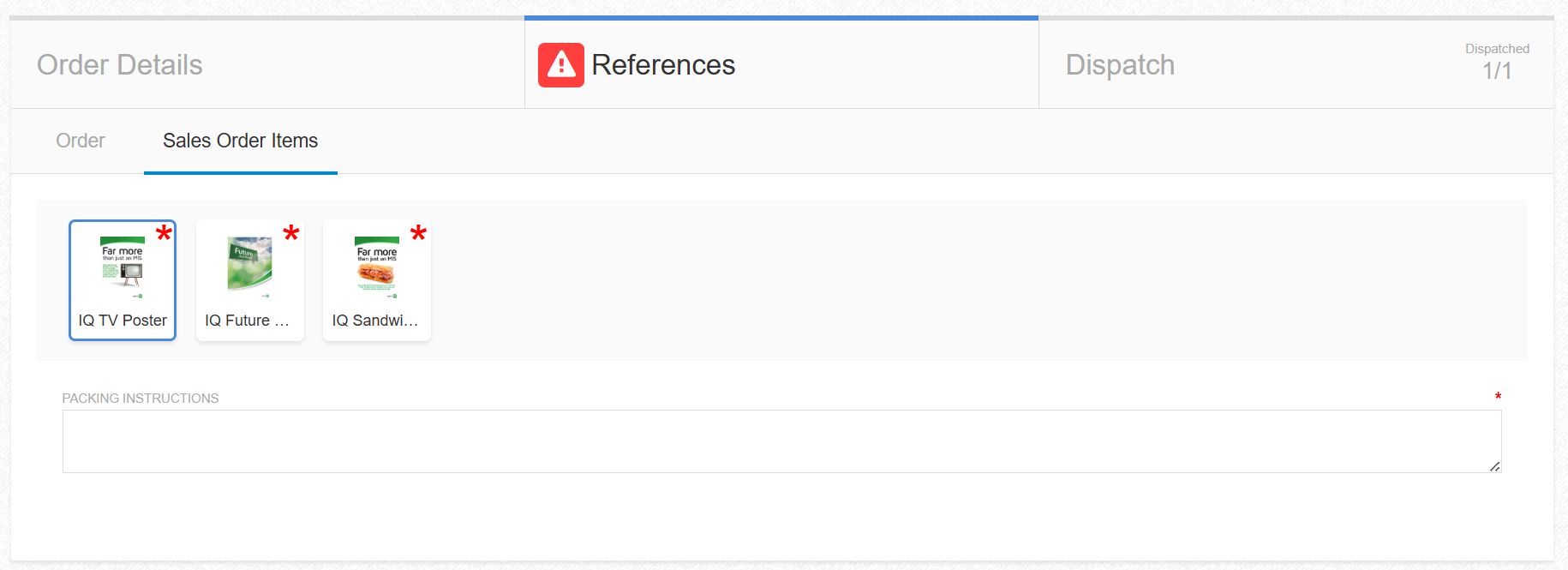
Sales Order Item (Accepted) can be linked to invoice references and have their values and configuration copied.
This means that if a value is set on a sales order item (accepted) reference, this can be copied across to a invoice reference and display on the invoice screen.
The first 3 sales order item (accepted) (SalesOrderItem(Accepted)1, SalesOrderItem(Accepted)2 and SalesOrderItem(Accepted)3) are optional columns on the sub orders board.
Sales Order Item (Quoted)
Sales Order Item (Quoted) references display on the Order Details/Checkout screen like so:
Sales Order Item (Quoted) References can be linked to Sales Order Item (Accepted) references and their values and configuration copied.
This means that if a value is set on a Sales Order Item (Quoted) reference, this can be copied across to a Sales Order Item (Accepted) reference and display on the job details screen.
Task References
Task references can be added to task items which can be created through the Tasking screen, Job Details, Customer Details and Quotes. For more information on QA and Tasks go to this article - https://printiq.zohodesk.com/portal/en/kb/articles/v47-1-op-t873-tasking-and-qa
When Task References are active, they display in the Creating and Editing Task modals:

Related Articles
Description Template (Quote\Job\Invoice)
Intended Audience: This article is intended for Super Users and Implementation Staff involved in configuring and managing Quote, Job and Invoice description(s) within printIQ Overview This guide explains the options and fields available when creating ...Customer Portal - Usage (BETA)
Customer - Default landing page Overview The Customer Portal Dashboard is a central landing page for customer users, giving them a single place to see outstanding balances, pending quotes, orders in progress, recently shipped orders, and their ...Toggle Quote Visibility for Customer Users (BETA)
Toggle Quote Visibility for Customer Users A guide for printIQ users What is this feature? Quote Visibility lets internal users control whether a quote is visible to customer users in the printIQ portal. When you start a quote, you can mark it as ...Webhooks - Managing Customer Job References
Managing Customer Job References Programatically printIQ customer and job references can be read and updated programatically, using the QuoteProcess web service calls in the table of contents above. Full WSDL can be obtained from ...Customer - Important Notes
Introduction Inside a customer record we have a field called ‘Important Notes’ where you can catch specific customer-related information, that you would like everyone to pay attention to. These ‘Important Notes’ are added with the view of you never ...